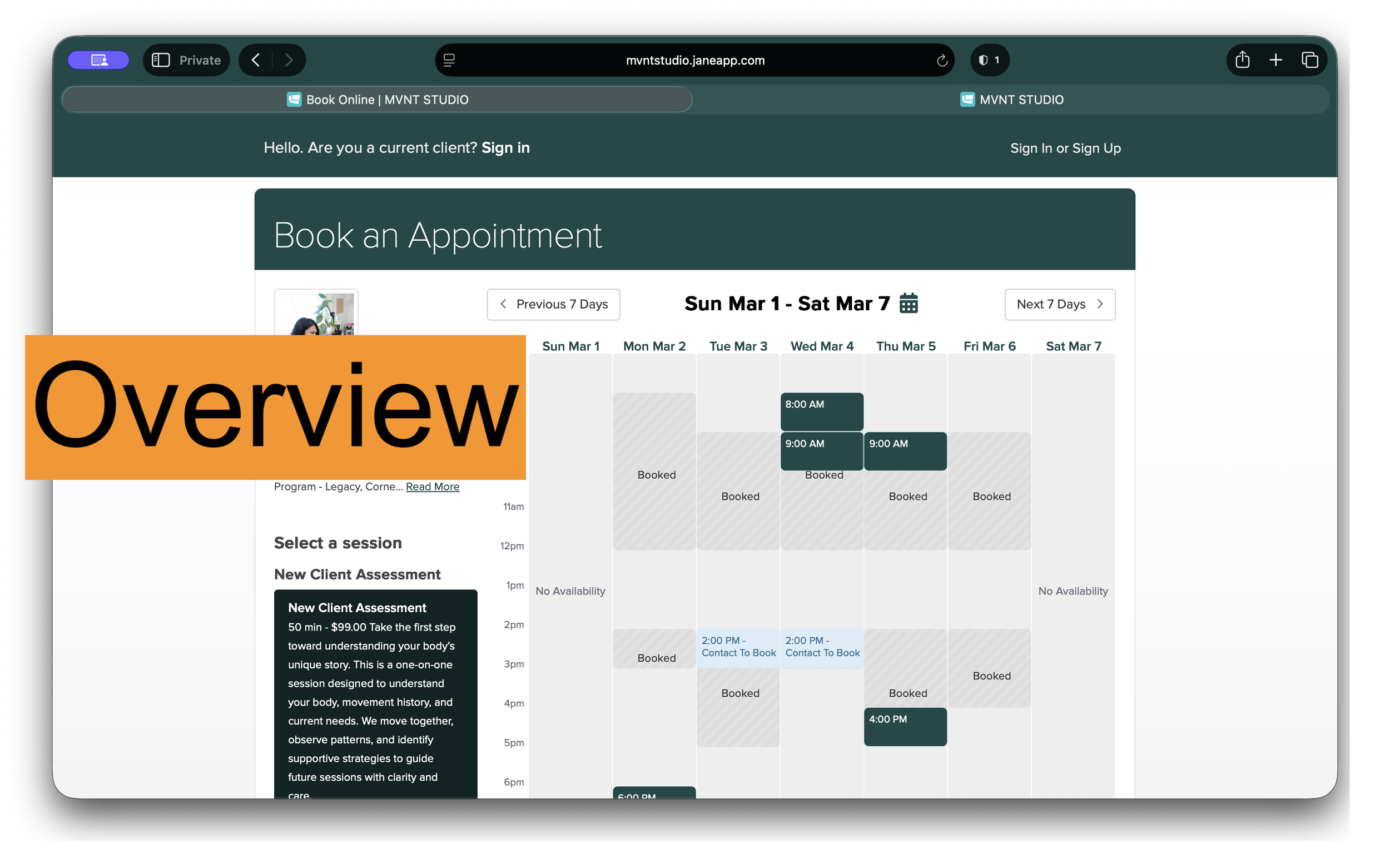
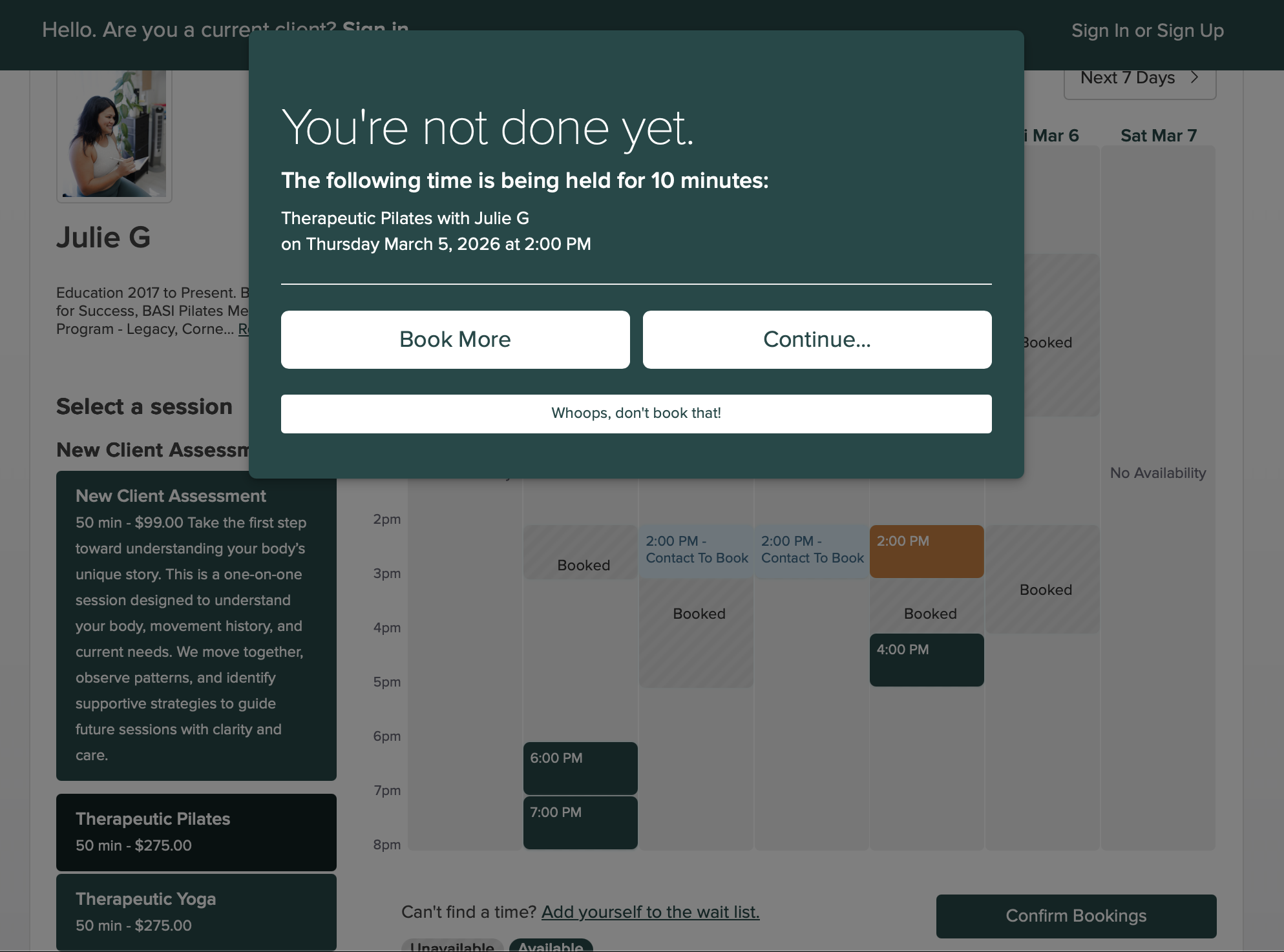
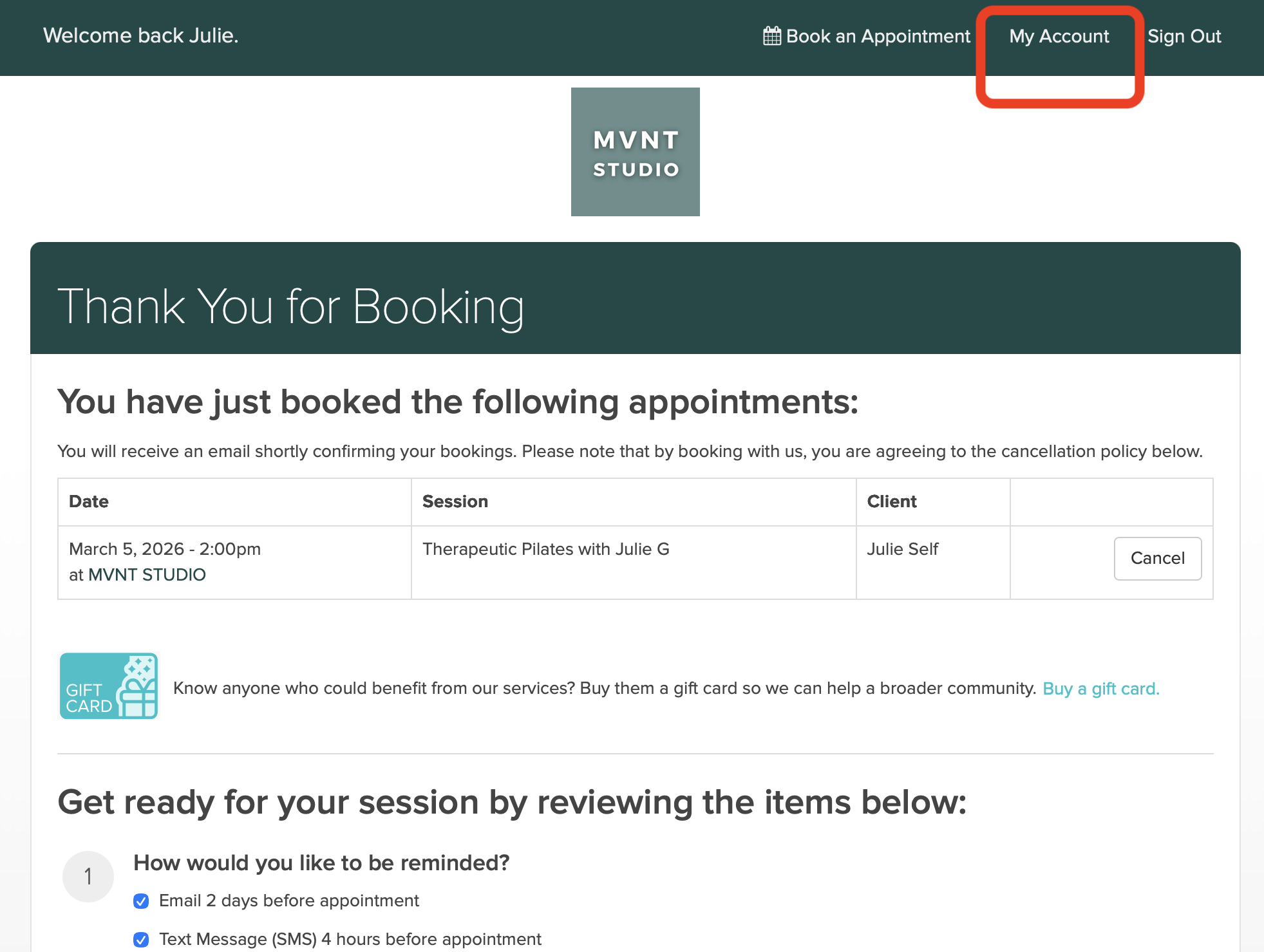
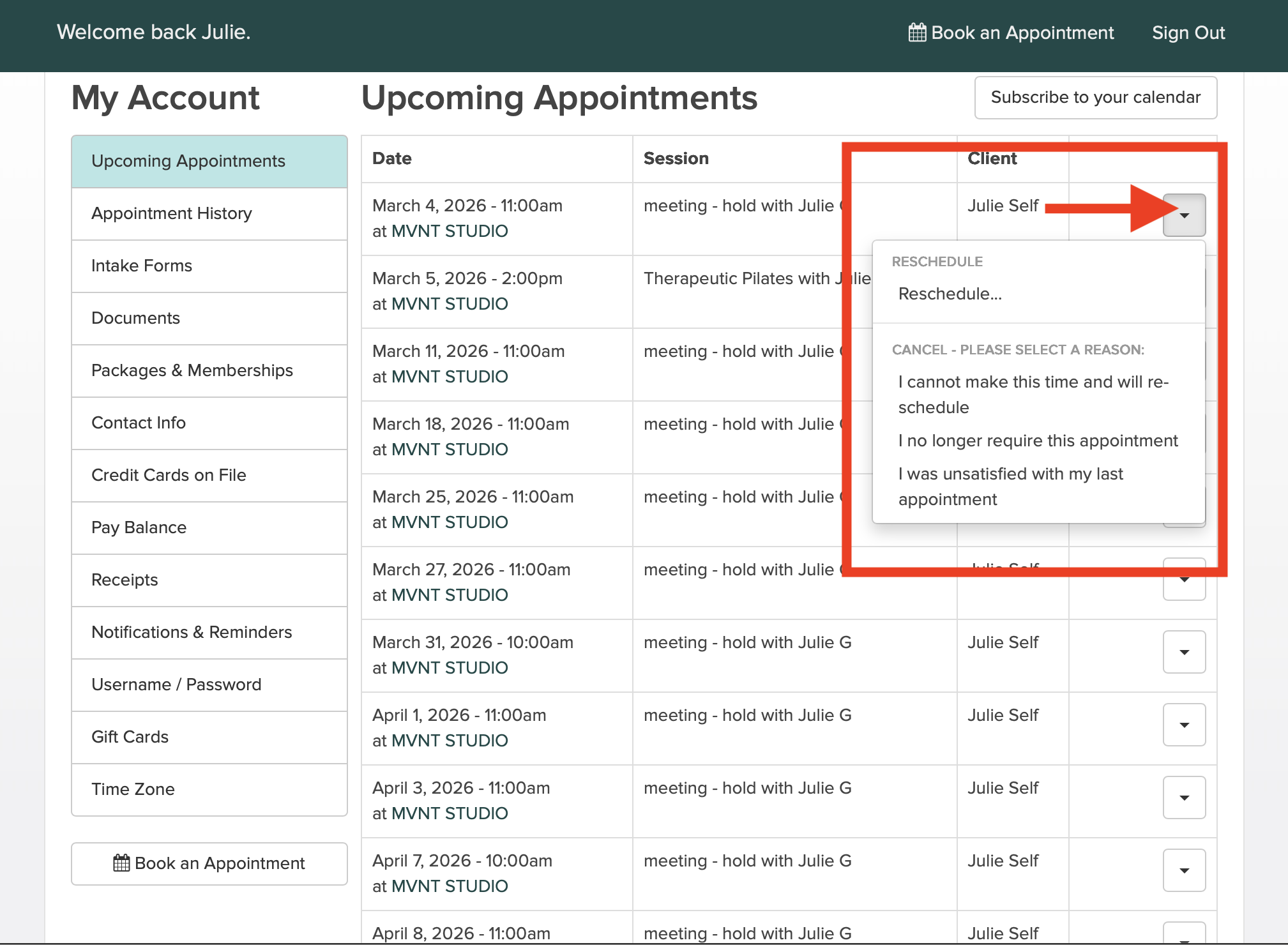
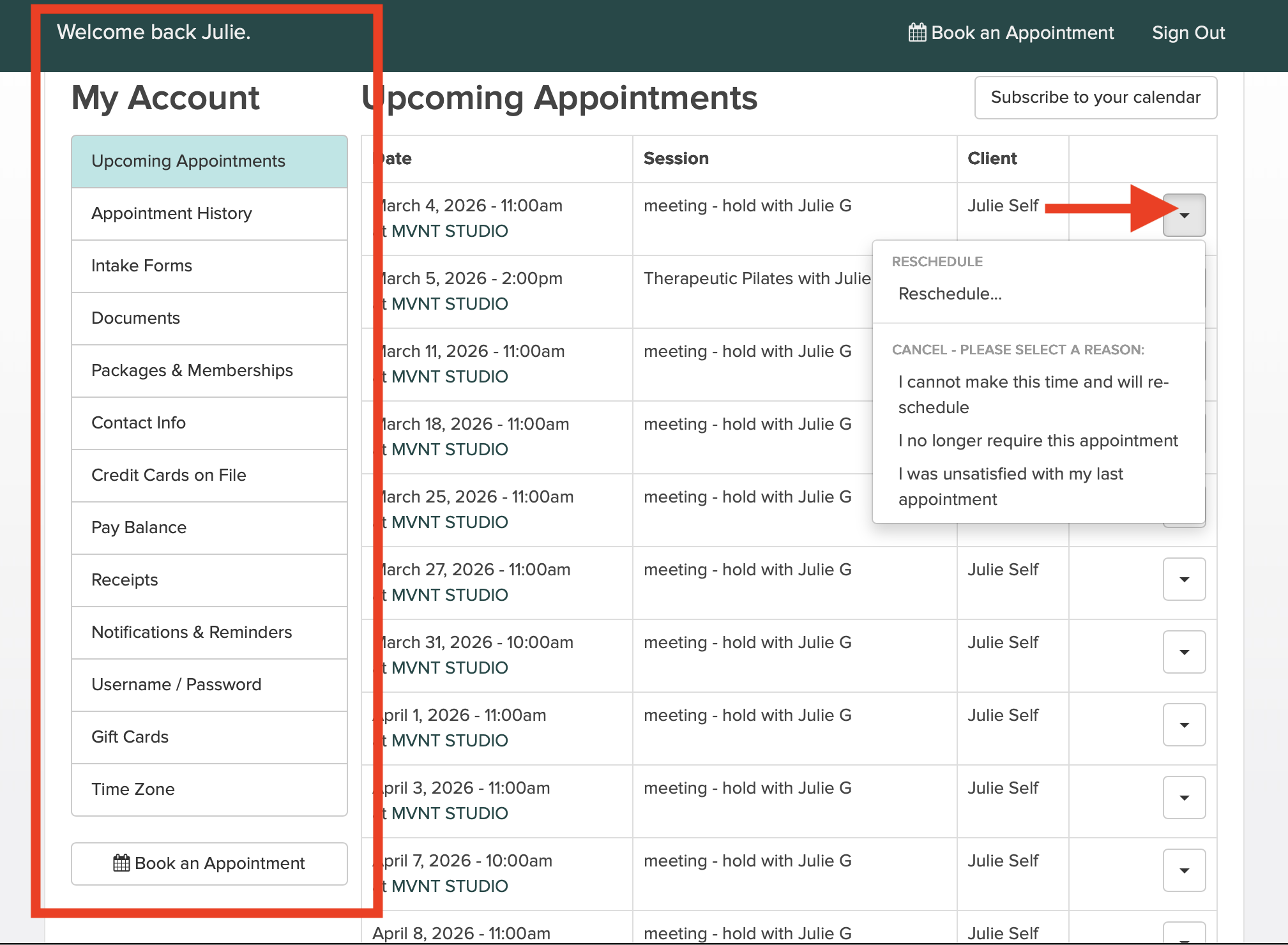
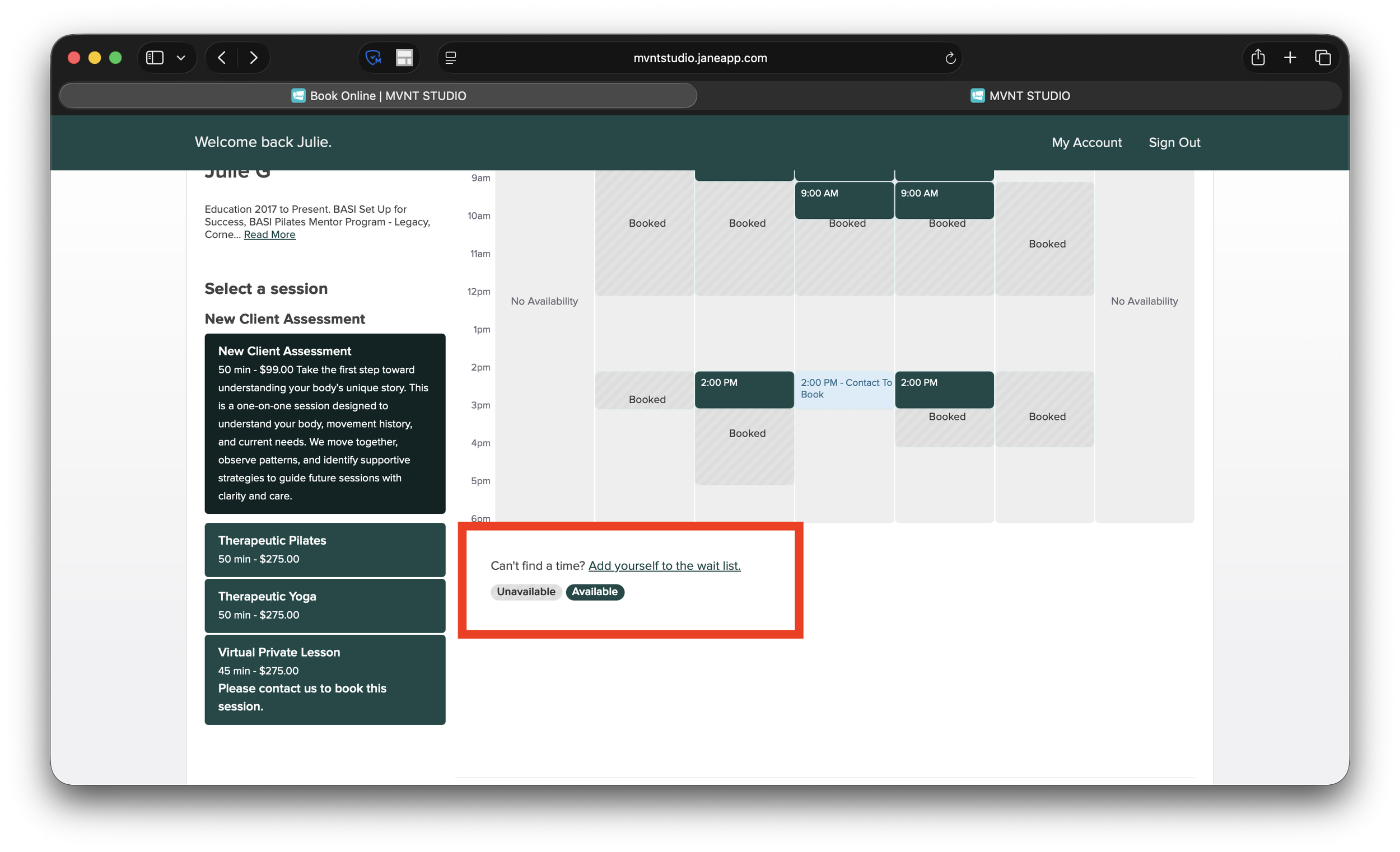
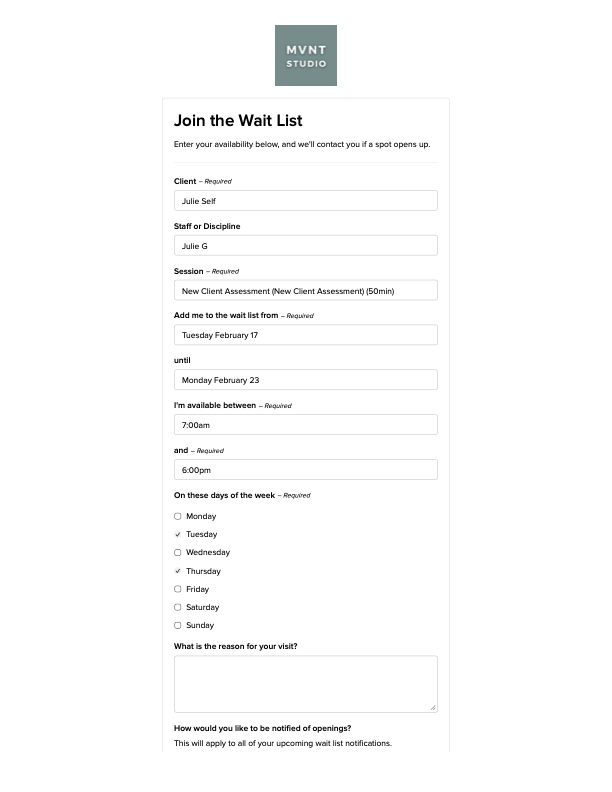
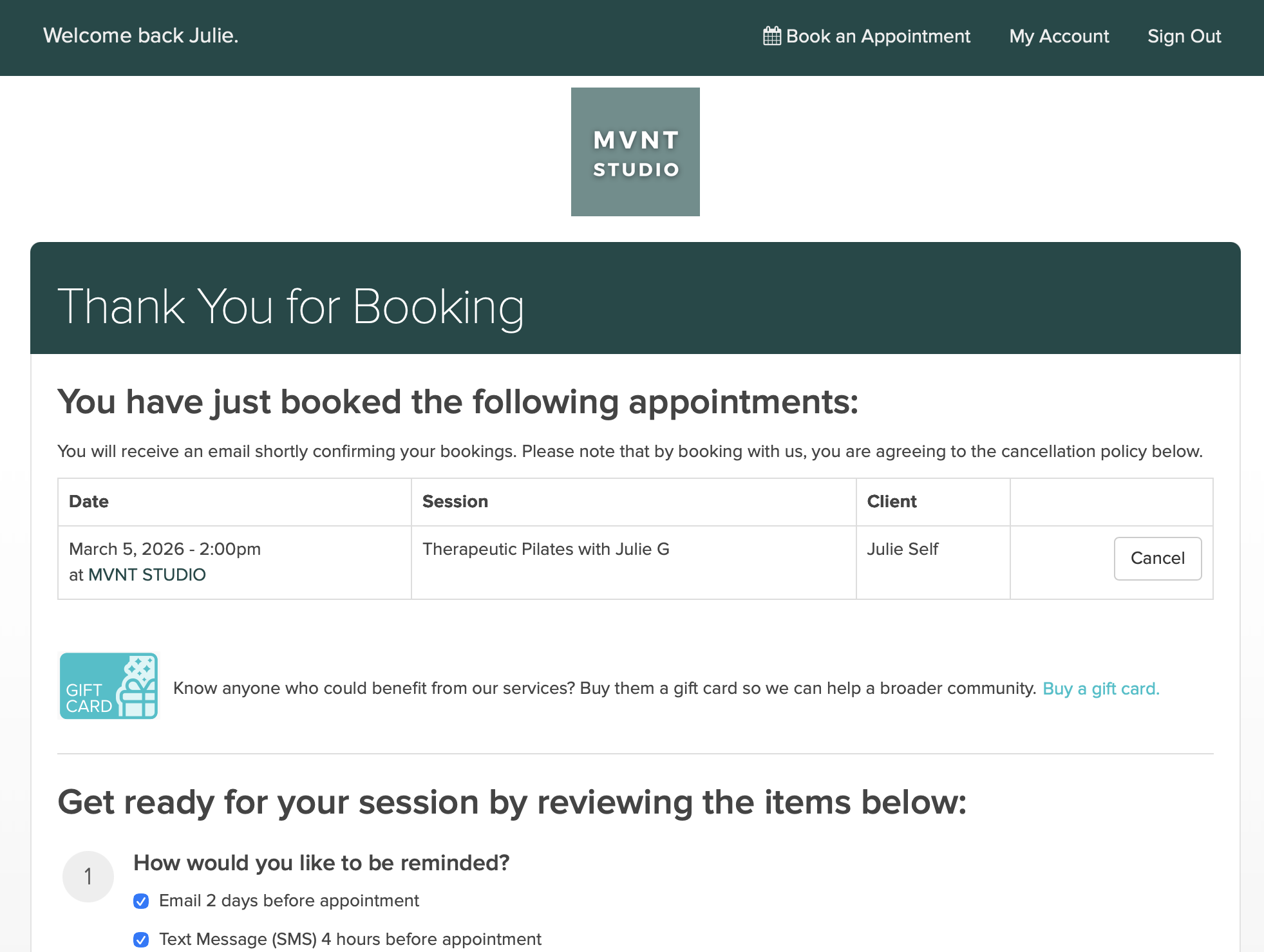
How to Use our New Scheduling Tool Feb 20 Written By Julie Ann Now on JaneApp It’s Simple and More Secure. How to Schedule Overview of the scheduling page. 1. Click a time slot This window appears2. Select Continue This page confirms your appointment has been bookedScroll down the page to: 1. update credit card (if needed) 2. Update your notification settings. 3. Subscribe to your calendar on your device to see you appointments. 4. or more options At the top of the page you will be able to access you account In the event of needing to cancel an appointmentSelect the drop down arrow of the appointment you need to change You can access all other details here if anything has changed for you How to Wait List Appointment Select at the bottom of the calendar to “add yourself to the wait list.” Waitlist Pop Up This window will load and you can request days and times that fit your needs. Julie Ann